Navigation auf-/zuklappen
Writing Multiple Emails Simultaneously
Your draft emails are not discarded. This allows you to start writing one email and, if necessary, write and send another, more important email.
Requirements: You are logged in to your mailbox on your PC/laptop via www.gmx.com .
You can write multiple emails simultaneously by clicking Write email again while composing an email. This allows you to work on up to five emails at the same time.
If you start composing a second email while another email is already being written, a gray button appears in the bottom-right corner. You can use this button to open the other draft email and close it if required.
If you start additional emails, you can also select the email you want from the gray button:
-
Click the Draft Emails button in the bottom-right corner.
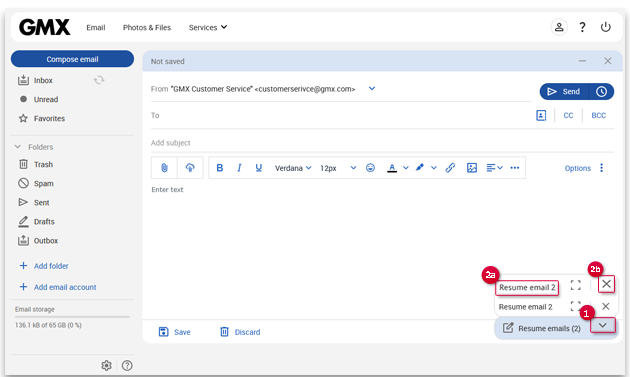 A list of your draft emails opens above the button.
Was this article helpful?