Navigation auf-/zuklappen
Sharing items with external applications
Share a file or folder from your Cloud with external applications to make them available for other people.
-
Tap the share symbol.
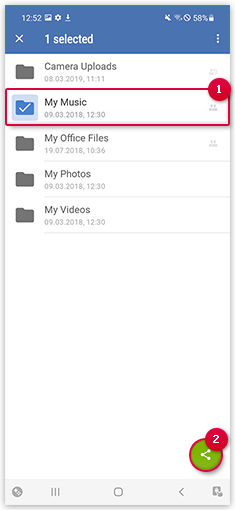 You shared the folder. More information on the share is displayed. You can send the share link directly via email if you tap Send via email.
 -
You can now set the access rights (a) and protect the share with a password (b). You can also set the share duration (c) or
end the share (d).
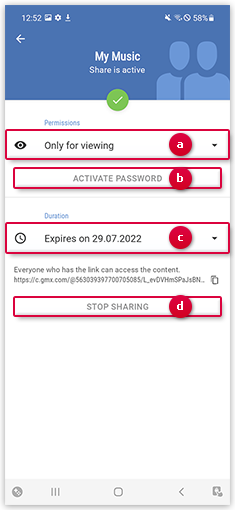 Your settings are saved automatically. To close the settings, tap the back symbol on the upper left.
Was this article helpful?