Navigation auf-/zuklappen
Uploading files
Upload elements such as photos or videos and use Cloud synchronisation to gain access to your files at any time and anywhere, from your smartphone, tablet or PC.
Requirements: These will be located in the folder you select for uploading elements.
-
Tap Upload file.
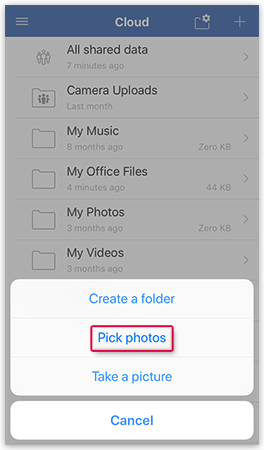
A window will open, showing all files and folders stored on the device.
Was this article helpful?